User Display Screen
Employee records can be accessed on the dlrSecured Identity Management web site to update employee information used with dlrSecured. Using the User Display screen, the Email address linked to dlrSecured can be updated, verification methods can be added, and dlrSecured roles can be reviewed.
Note - To access this screen for an employee, click the  (View) icon on the Users screen for the employee. To access this screen for your personal record, click the Me link on the Home page of the dlrSecured web site.
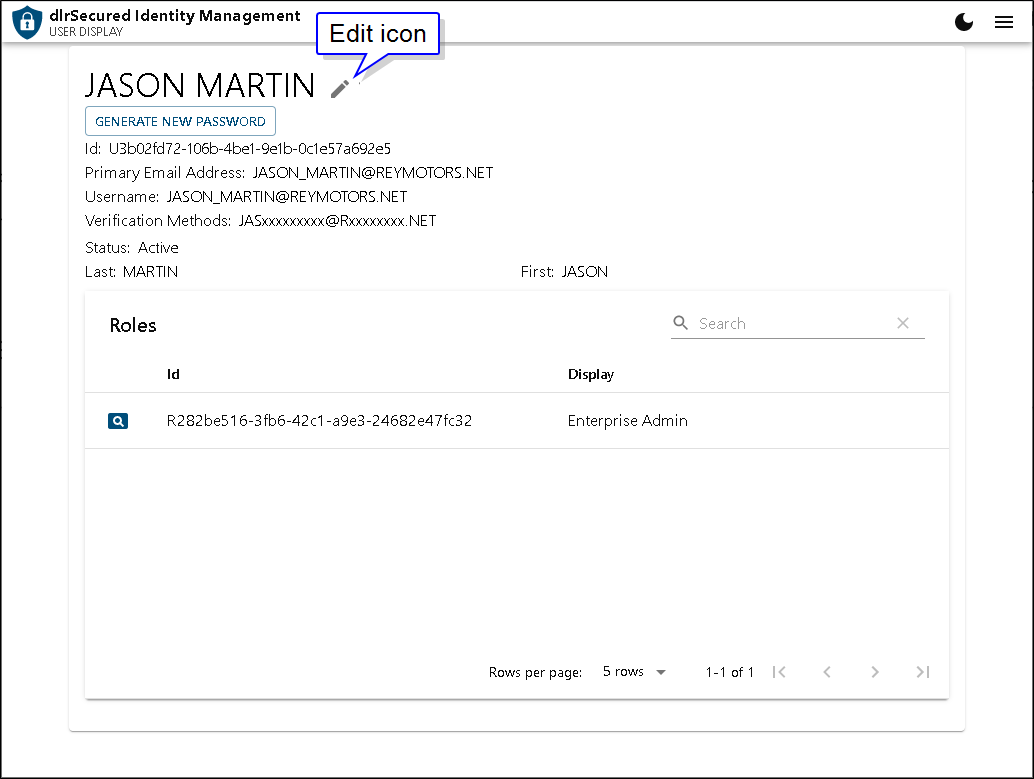
To update information on this screen, click the  (Edit) icon. The screen displays in Editing mode, and the information can be updated as needed.
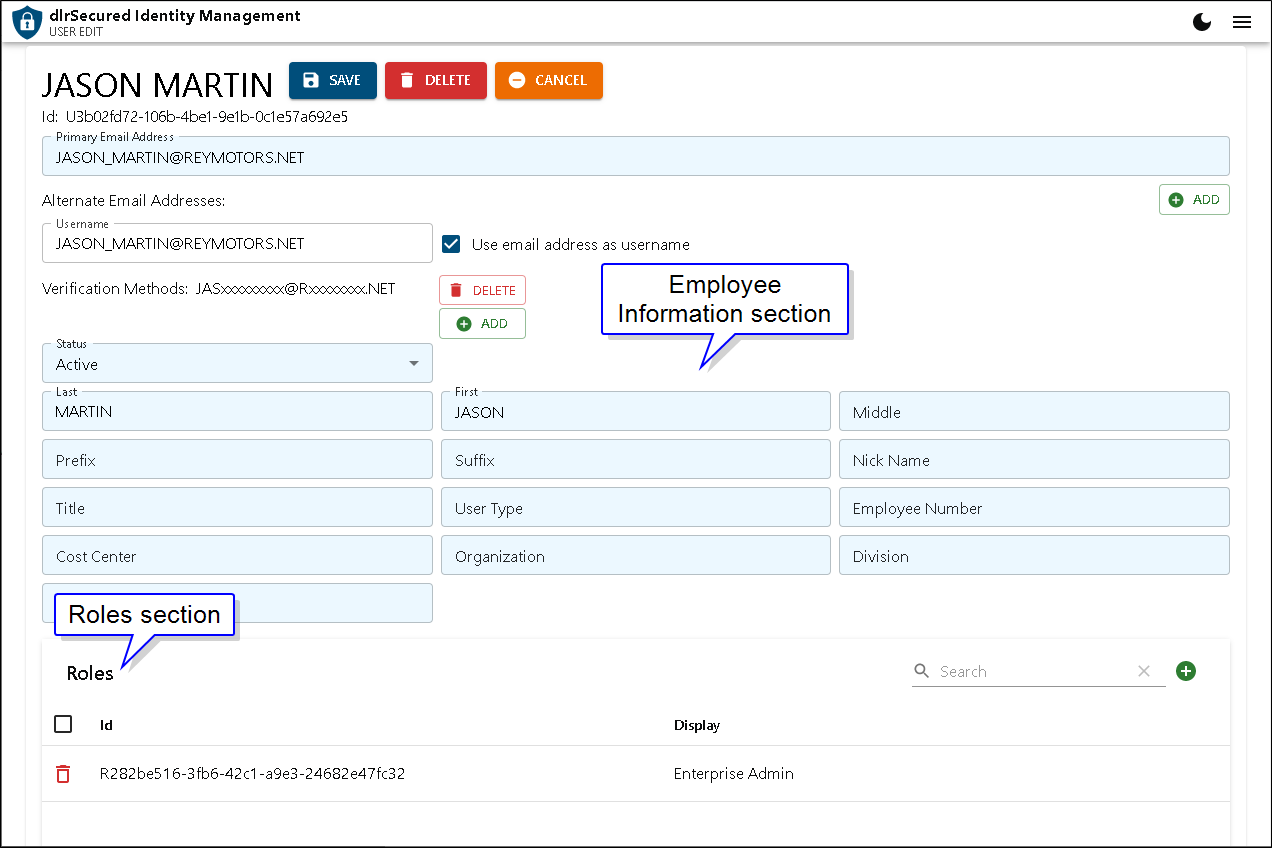
The following information can be defined using the User Display screen.
-
Email addresses. To update the Email address linked to dlrSecured, enter a new Email address in the Primary Email Address field. Additional Email addresses to use as alternate Email addresses can be added by clicking the ADD button to the right of the Alternative Email Addresses field. For example, if an employee's dealership Email address changes due to a name change and he no longer has access to the primary Email address, an alternate Email address can be added.
-
Verification methods. Verification methods can be added using this screen by clicking the ADD button in the unlabeled Verification Methods section.
Note - Verification methods can only be added when viewing your personal record. When viewing this screen for another employee, verification methods can only be removed by clicking the DELETE button. If the last verification method for an employee is deleted, the primary Email address linked to dlrSecured is automatically restored as a verification method.
-
Employee information. In the unlabeled Employee Information section, employee information, such as first and last names, title, and employee number, can be updated.
-
Roles. In the Roles section, the dlrSecured roles assigned to an employee can be reviewed, and additional roles can be added by clicking the
 (Add) icon. By adding additional roles, employees can access dlrSecured settings for the products utilizing dlrSecured.
Once the record has been updated, click the SAVE button to save the changes.
Click here for a list of products that may be mentioned in this help file.